Create an Assumable Identity to Authenticate from AWS (Legacy)
Tutorial outlining how to create a Chainguard identity that can be assumed by an AWS user or role.
5 min read
For the complete documentation index, see llms.txt.
You can use the Chainguard Console to configure how Chainguard is permitted to send notifications about things like breaking changes to users in your organization. The feature includes options to allow notifications to be sent in-app to the Activity Center on the user’s Overview page in the Chainguard Console, via Slack, and for customers who are opted in, via email.
These notifications are different from Chainguard Events as Chainguard Notifications are sent by Chainguard’s customer success representatives.
Note: Chainguard Notifications is in beta.
Notifications are currently limited to messages related to a small set of topics like breaking changes, incidents, and product lifecycle changes like end-of-life (EOL) and new releases.
The in-app notifications are set up automatically and currently have no configuration options.
Slack requires you to establish the connection between our Chainguard Notifications Slack app and your company Slack workspace by completing the Slack OAuth flow that initiates when you connect Slack the first time.
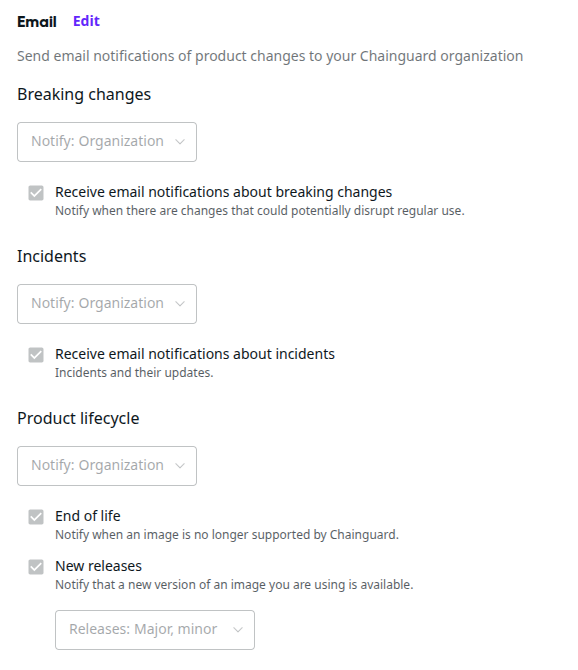
Some customers have access to email notifications. When enabled, you have control over which email notifications are sent. You are also able to set one or more additional email addresses to receive notifications for your organizations; these are called forwarding addresses.
Make sure you are logged into both the console and to your Slack workspace on the same machine before you begin. To perform this task, you must use a user account for the Chainguard Console that is configured with the owner role for the organization and a Slack account that can add apps to your Slack workspace and which has access to the Slack channels you plan to use.
For example, when you are trying to add the Chainguard Notifications app to Slack channels, the Slack account you are using will only be shown a list of public and private Slack channels the app has access to and your Slack user account is a member of. If you have a specific channel in mind for these notifications, make sure the Slack user establishing the connection has access to and is a member of that channel.
To set this up, follow these steps:
In the Chainguard Console, open Settings > Activity Center.
Next to the Integrations section heading, click Edit.
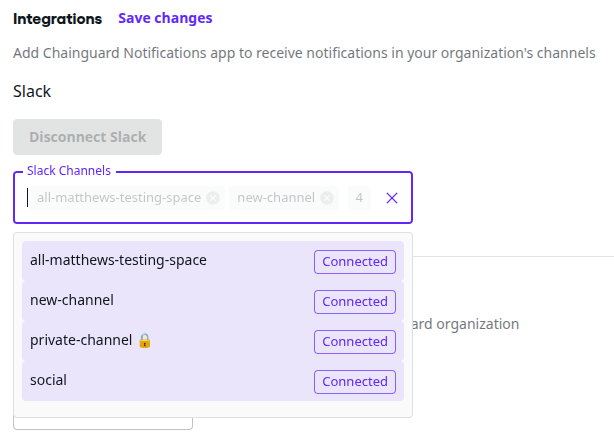
Under the Slack subheading, click Connect Slack. A pop-up window from Slack will appear asking you to allow the Chainguard Notifications app to access Slack.
In the Workspace dropdown, select the Slack workspace in which you want to have your users receive Chainguard Notifications.
Click Allow.
Follow the directions in one or more of the following sections to enable notifications in public and private channels.
If you want to provide Chainguard Notifications in a private Slack channel, then at this point you must add the app to the private channel. In Slack:
Enter the private channel with your Slack user.
Click on the channel members icon to open the list.
Click to open the Integrations tab.
Click the Add an App button to display a list of available apps in your workspace.
Find Chainguard Notifications in the list and click the Add button.
Include the private channel in your actions in the next section.
NOTE: Private channels will not appear here unless you first complete the preliminary step in the previous section.
Email notifications are not yet available to all customers.
To perform this task, you must use a user account for the Chainguard Console that is configured with the owner role for the organization. Then, follow these steps:
In the Chainguard Console, open Settings > Activity Center.
Next to the Email section heading, click Edit. You can then change settings for what notification topics will be sent and to whom, either an individual or perhaps to an email alias for a group.
When you are done, click Save changes.
Notifications fall into one of multiple categories based on content. Here’s a list of the currently available categories:
Q: I connected Slack successfully, but the channel I want to use doesn’t appear in the “Slack Channels” dropdown. Other channels show up fine — why is this one missing?
The most common cause is that the channel is private. The Chainguard Notifications Slack app can only see public channels by default. To make a private channel selectable:
Q: My channel is public, I’m a member of it, and I even added the Chainguard Notifications app to it — but it still doesn’t show up. What’s wrong?
This usually means the email address you used to sign in to the Chainguard Console doesn’t match the email address associated with your account in your company’s Slack workspace.
The Slack app uses your Console email to look up your Slack user ID — if it can’t find a matching user in your workspace, it can’t determine which channels you have access to, and the channel list comes back empty (or partial).
A common version of this scenario is signing in to the Console with your Github profile linked to your personal Gmail (e.g. you@gmail.com) while your corporate Slack workspace knows you as you@company.com.
To fix it:
Q: I disconnected and reconnected Slack with the correct email, but the channel I want still isn’t appearing. Now what?
After reconnecting, the channel list can get stuck on a stale cached version from the previous session.
A hard refresh of the Console tab almost always resolves it. On Mac use Cmd + Shift + R or on Windows and Linux use Ctrl + Shift + R to refresh.
Then reopen Settings > Activity Center and check the channel dropdown again. If the channel still doesn’t appear after a hard refresh, contact your Chainguard Customer Success representative — they can verify on the backend that your Slack user ID was successfully linked to the Notifications service.
Last updated: 2026-03-20 08:49